
We Work With Trusted Partners
For many years, we have partnered with Worldpay from FIS, an award-winning firm that specializes in processing credit, debit, and gift card transactions. Worldpay from FIS uses the Internet to process sales, and their platform is integrated with Windward’s retail software products. Global Payments is our integration partner of choice for Canada.
Streamlining Sales
With Windward Software’s integrated credit card processing option, your customers will experience authorization speeds as fast as three seconds. Businesses also benefit because there’s no need for a phone line at each register.
Processing transactions at point-of-sale is straightforward, meaning there’ll be a decrease in errors. Cashiers will never miss a failed authorization because the tender won’t be accepted. This retail software allows you to view transaction reports in real time before you close your batch. This gives you a better chance of discovering a transaction that was double-processed before you close.
Invoice Comments
There are three types of comments you can place on an invoice:
Invoice comment: This comment gets attached to the invoice as a whole. If you are doing service work, this could be used to enter the initial complaint or problem such as "It's broken, fix it." In this case, you could print the comment on the open work order to let the techs know what to do, but not print it on the customer's final invoice because it would be a waste at that point.
Line comment: This type of comment gets attached to a specific line on an invoice. For service work, it would describe what work was actually done. For inventory sales, it may include information such as "Scratched – sold as is." This type of comment almost always gets printed on the customer information. Comments are normally limited to seven lines, but you can have many of these on a single invoice.
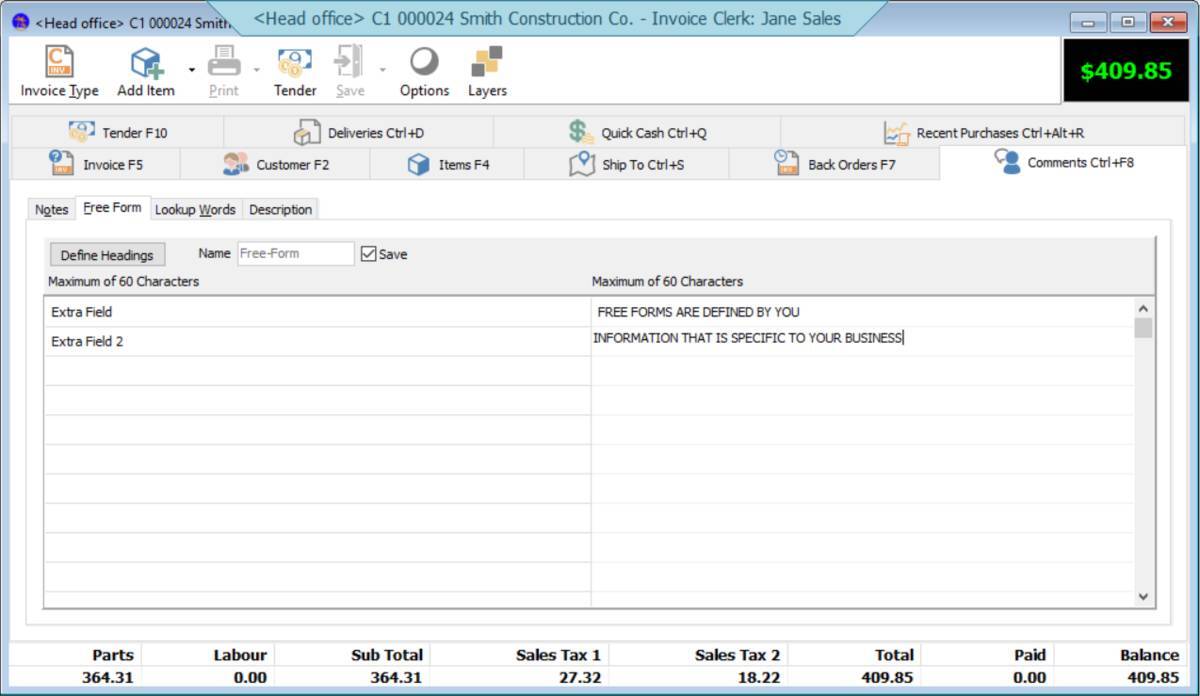
Freeform comment: You can define up to 20 fields for invoices and then enter data for these fields for each invoice. In the service business, it might include the make, model and serial number of the unit being worked on (if you aren’t using the unit system). You can define which of these comments to print and which not to print. Appliance servicing companies often fill in these fields to print on CESA forms.
Layaways
Windward System Five allows you to enter and keep track of your layaways. Layaway invoices reserve the inventory for the customer, but do not affect the customer balances or general ledger until converted to an invoice. Because of this, taxes are also not due until the invoice is created.
You can accept multiple payments on lay-by's, and print statements for the customers, showing them the:
- Value of the item
- Payments received
- Balance due
Payments on Account
If a customer makes a purchase but will be paying later, the invoice type should be set to accounts receivable. The amounts owing are then attached to the customer file and when payments come in, they can be applied to the invoice and the customer.
It’s very important that whenever inventory leaves the store in a customer's possession that an invoice be created, either cash or accounts receivable. We’ve seen problems with businesses that leave work orders open until the customer has paid cash, and then turn them into cash invoices. This will cause lots of confusion and problems for your business.
Even worse is the situation where some items on the work order are to be delivered at a later date, and some were already taken by the customer. You must then depend on memory or scraps of paper to keep the details straight. Instead, Windward System Five supports tagging and moving the shipped items off of a work order onto a final invoice.
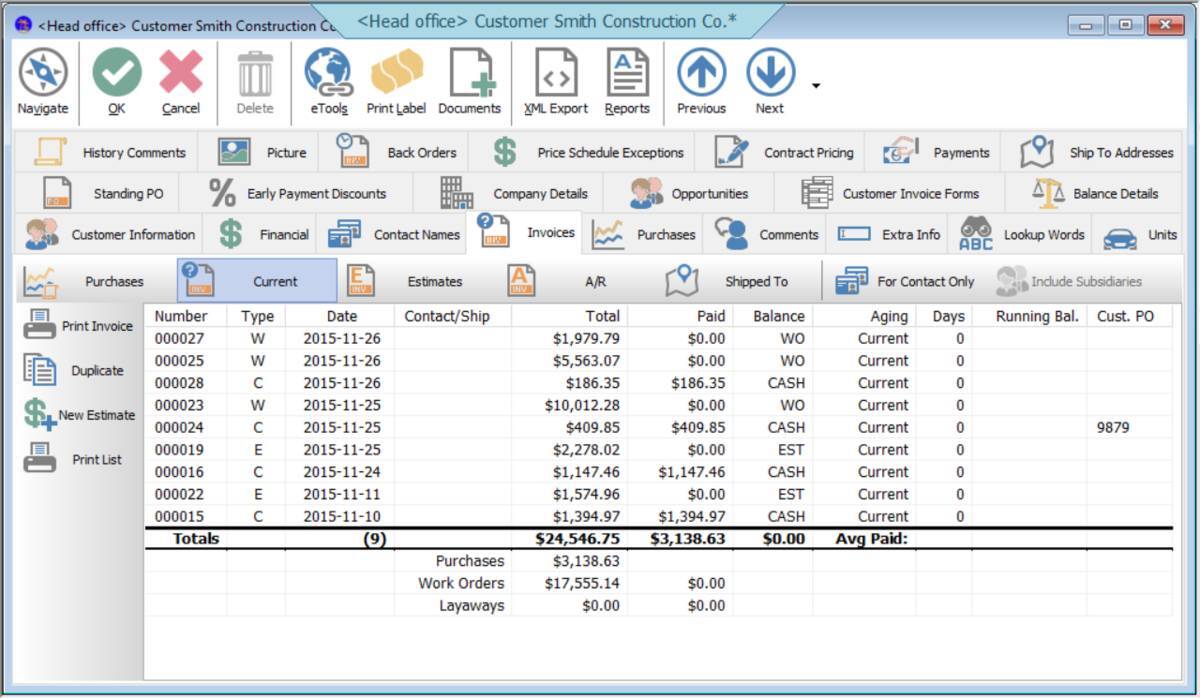
All the information is cross-referenced several different ways to help you easily reconcile customer accounts. For example, you can:
- View a customer payment and list the invoices paid and the amounts applied to each invoice
- You can view an invoice and list all the payments made on the invoice
- You can view the customer record and list all the invoices and/or payments on file for the customer
Editing, Fixing and Reprinting Invoices
You can reprint any invoice or docket in the system, even one that’s several years old. This is especially handy for customers that have warranty claims, but have lost their invoices. It saves your employees from spending days searching though old invoice files. To find an invoice for reprinting, you can search by:
- Invoice number
- Customer name
- Phone number
- Customer purchase order number
- Invoice date
- Item number
- Serial number
Form and Invoice Layouts
One of the most important aspects of POS software is the look and feel of the printed invoice, as this is what your customer sees. With Windward, you have total control of the invoice layout with our easy-to-use Form Files.
The Form Files allow you to define how and where to print the invoice data. You decide what information you want, and where you want it using a drag-and-drop method to create the design. There are many variables available, allowing you to make invoices (or any printed copy) as simple or as complex as you wish.
Inventory Sale
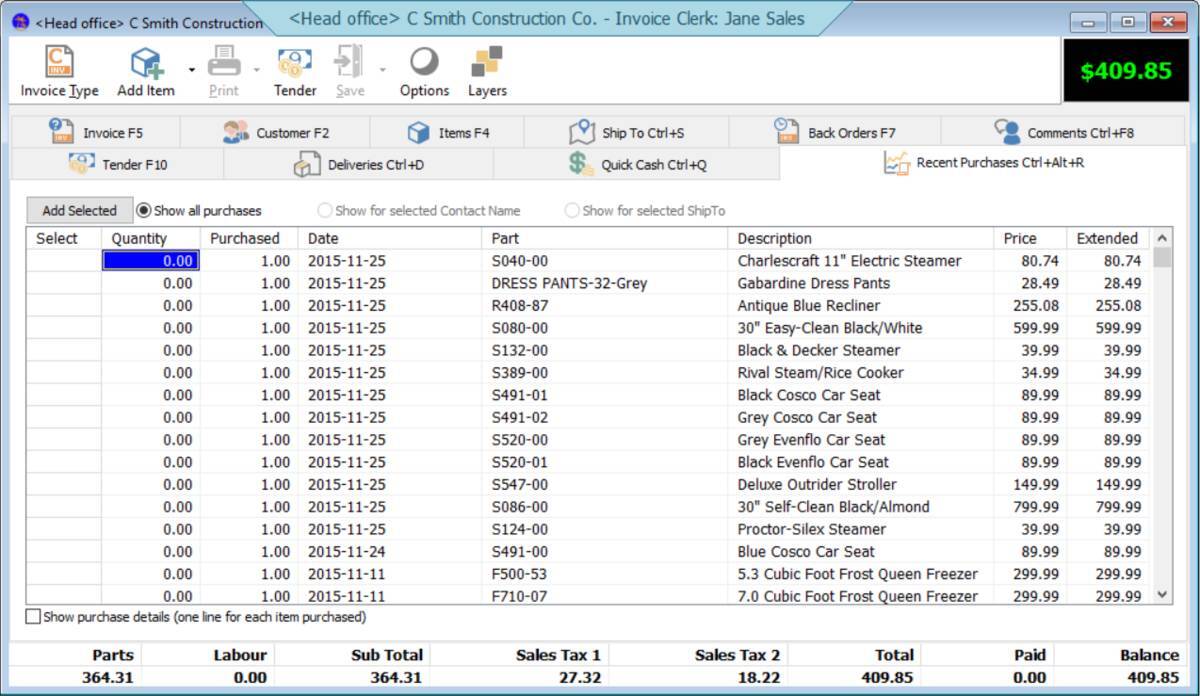
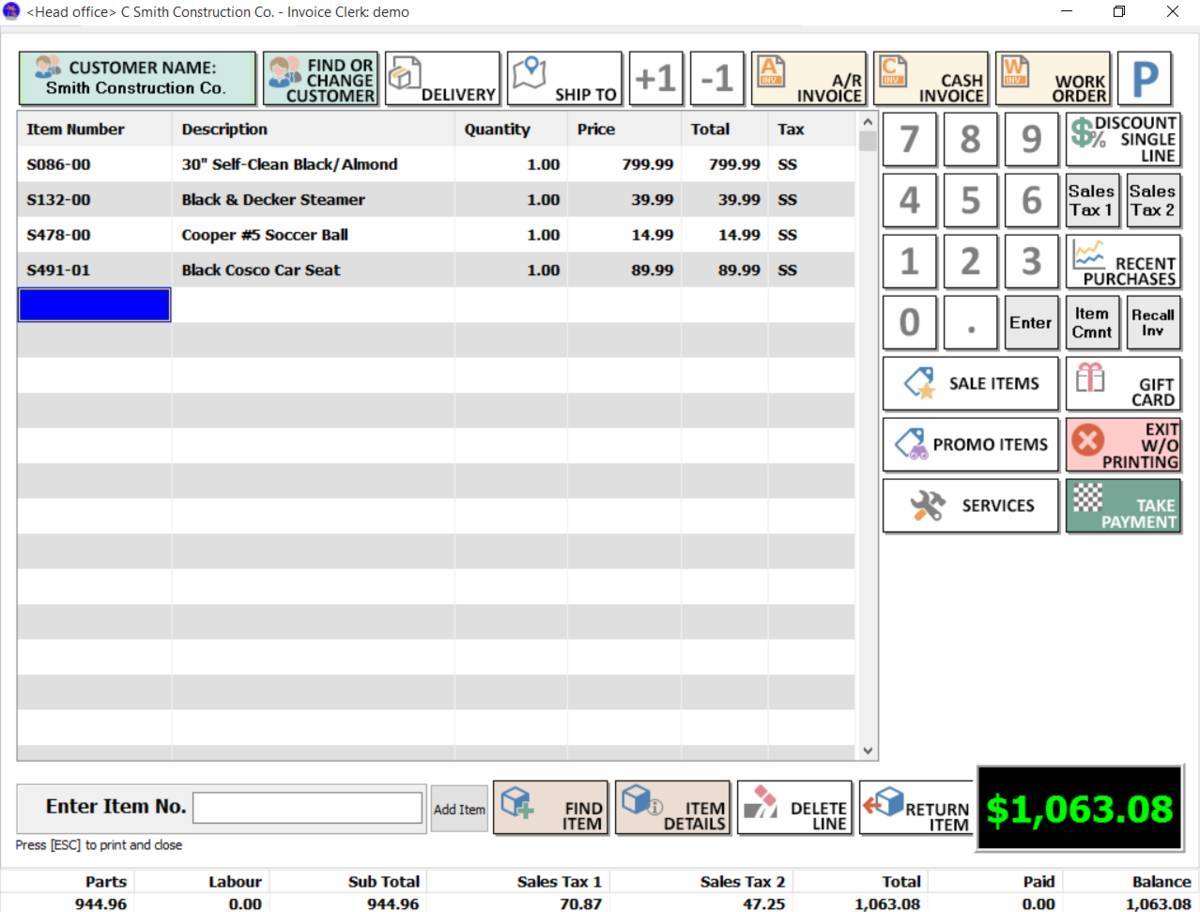
Scan the barcode and the inventory item will be added to the invoice. The POS system will assume you want to sell a quantity of one, but the cursor will land on the quantity field, allowing you to easily add multiples if needed. Otherwise, scan the item multiple times to achieve the same result. It’s that simple.
If the barcode unreadable, or you don't use barcodes in your business, just type in the part number on a blank line. You only need to type in a portion of the part number. If more than one item starting with the same part number is found, the system will bring up a window for you to choose from. In many cases, this saves keystrokes, and the less you type, the less chance there is of making a mistake.

If you do not know the part number, then click the Add Part icon, or press the return key twice on a blank line. The POS software will bring up the inventory search window to let you search by description, serial number or supplier's part number. You can also search via the lookup windows (see the Inventory Search Screens for more details).
All the invoice types are entered the same way in Windward System Five including:
- Estimates
- Work Orders
- Cash Sales
- Charge Sales
- Credits
They’re all entered in exactly the same format, making it exceptionally easy to learn. Other systems have different input forms for each type of invoice, with different rules as to what is allowed on each.
With Windward System Five, you even have the option of switching invoice types on the fly. For example, if a customer doesn’t have enough money, you can change the sale to an estimate, which can be used later when the customer returns with the cash. Or, you can change the cash sale to a charge sale and add the invoice to accounts receivable.
Estimates and Quotations
Our POS software allows you to enter estimates using the customers and inventory items on file, without adjusting the inventory quantities or ledger values. When the customer decides to make the purchase, you can convert the estimate to an invoice or work order without having to re-enter all the data.
Customers
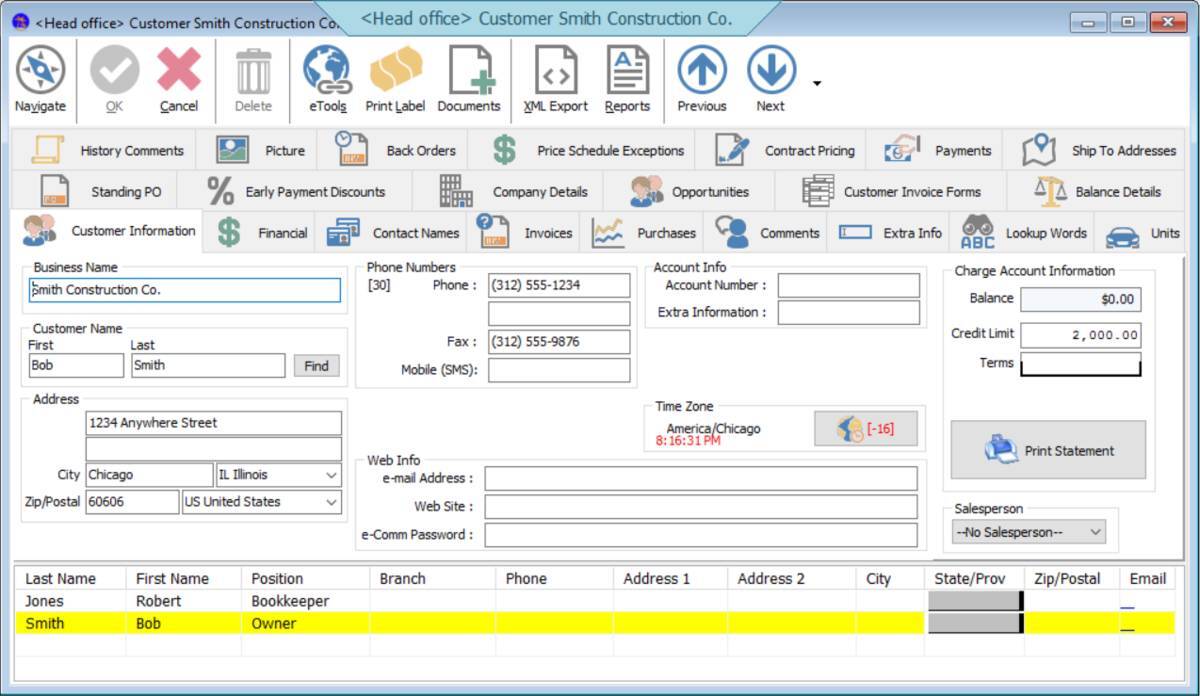
Customer information and history is a high priority with Windward System Five. Our POS software lets you keep track of many important bits of information on a customer file:
- Name, Address, Phone number
- E-mail address, Web addresses
- Tax codes
- Price schedules
- Credit limits
- Contact names
- Warning comments
- Appointments
- Look-up words
Work Orders
If you’re in the service business, you can create work orders while the work is in progress. As the work is completed, the work orders can be updated so that when the customer arrives, it can simply be converted to an invoice, estimate or charge. When you convert a work order to an invoice, you do not need to re-enter all the data.
You can accept deposits on work orders, and the system will show the correct balance due when the customer returns to pay the bill. As work orders are entered, the inventory values are immediately updated, however the customer balances and ledger values remain unchanged until the work order is invoiced out.
Credits or Returns
If you need to credit a customer for a return, you can sell a negative quantity, which will return the item to stock and reverse what the customer owes you. On a single invoice, you can sell one item and return another item, and then have the customer pay the difference.
That's simple, easy and intuitive compared to other systems where you need to create a separate invoice to take returns or process credits. This makes the process complex and difficult to deal with, especially for new clerks.
Invoice Profitability and Discounting
When negotiating with a customer, it's important to know your profitability before you agree to the discount. If an employee has the correct security level set, they can easily check the costs and profit margin before making a decision. If they then agree to a discount, they can either discount a single line or the entire invoice.
To make discounting easy, if you agree to a final price after taxes, you can enter that value and the system will calculate the corresponding subtotal. Another important aspect to discounting an entire invoice is that each line is proportionally discounted instead of taking the discount all off of one line. For example, if you were selling box springs and mattresses and only discounted the mattresses, the reports at the end of the month might suggest you sell more box springs and fewer mattresses, which would be incorrect.
Taxes
Taxes are charged automatically on the invoices based on several factors. This is a potentially complex area of the program as there are so many different rules in different areas. Some states and provinces have only a single tax set at a straight percentage. This makes it fairly simple, but even then there are exceptions to the rule, such as customers being tax-exempt for certain types of sales.
Generally speaking, the process works like this:
- The system looks at the customer record to see which tax zone they are in (for companies selling in more than one zone)
- The system then checks the inventory item to see if the item is exempt for each tax type
- If it's not exempt, it then checks the customer record to see if it's exempt, for each tax type
- If the item is not exempt in either record, then the tax is charged
However, the user can override the taxes and exempt the invoice manually, if required.